
Navigation Bar
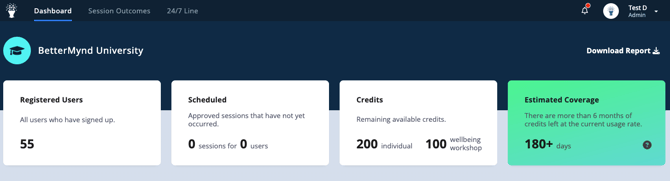
The top navigation bar includes the dashboard (the image above), Session Outcomes, and the 24/7 Line if your campus has that product.
Additionally, the right hand side has notifications and account settings.
- Dashboard - includes summary tiles related to usage, a real-time list of credits used, and graphs showing credit usage over time.
- Session Outcomes - A report showing outcomes by user. Search and filter by date, outcome type, and email.
Tip: Some institutions use this to make decisions based on a user's historical outcomes. For example, if a user no shows or late cancels several times, an institution might decide to offer other types of support or at least check in with the user.
- 24/7 Line - Aggregated data related to the use of the 24/7 Support Line. Filter by date to see presenting issues, calls by time of day, week, and month. Also review by case with anonymized participant ID.
- Notifications bell - A red dot signifies a waiting notification for review. You can also sign up for notification emails.
- Account - Clicking on your name in the upper right corner leads to the Notifications settings, where you can choose which notifications will receive an alert. Alerts are sent via email.
Summary Tiles
The top portion of the page is anchored by several tiles, displaying key summary data for the institution:
- Registered Users: Count of all registered users associated with the institution. Users will need to be linked to the institution in order to be considered a registered user. This count also includes users invited to the platform directly by a Campus Administrator through their account.
- Scheduled: Count of upcoming approved sessions and the unique users who scheduled them.
- Credits: Count of remaining credits across the entire institution for both individual sessions and wellbeing workshops.
- Estimated Coverage: Estimation of remaining coverage (as measured by individual session credits) for the institution, based on the school's utilization rate.
Downloadable Reports
Campus Administrators can quickly generate and download two report types from the dashboard by clicking the “Download Report” link in the top right corner of the main page. The summary PDF report that is generated will include the following data:
- Data from summary tiles (see above for more detail)
- Individual credit usage
- Credits added
- Credits used (broken down by successful/canceled/no-show)
- Average credits used per user
- Distribution (# of users that used x # of credits)
- Workshop credit usage
- Credits added
- Credits used
- Average credits per user
- Distribution (# of users that used x # of credits)
- Registrations by calendar year
- User mental health concerns by percentage
- Registered user demographics by percentage
- Gender
- Ethnicity
Quick Report: Users are able to set a particular date range and filter by tag, before downloading a summary PDF report.
Customizable Report: Users are able to set a particular date range and filter by tag and apply to either/both of 1) credits usage and 2) registrations.